Showing posts with label HARDWARE. Show all posts

How to Run Ubuntu from Pendrive


There is a good news for you.. Don't waste your disk space for loading an extra operating system in your computer and avoid problems related to partitioning. You can load any version of Ubuntu operating system from your pen drive(thumb drive). Just plug in your Ubuntu loaded pen drive and boot from it, sounds great right? Then go through the following steps to make it happen.


Step 1 : Download the latest version of Ubuntu operating system from the official Ubuntu page Download Latest Ubuntu. I you have a downloaded .iso version then don't look inti it.

Step 2 : Next we want the pen drive to become bootable for that Download Universal USB Installer software and install in your windows system. Now its simple our job is over now its machine's work to make it done for us.


Step 3 : Open Universal USB Installer and choose the Ubuntu version you have with you. If its not listed in it don't worry just choose the Ubuntu option and locate your downloaded ISO file. it may look like ubuntu-amd-64.iso or some thing like that and select your pen drive as source then click OK.


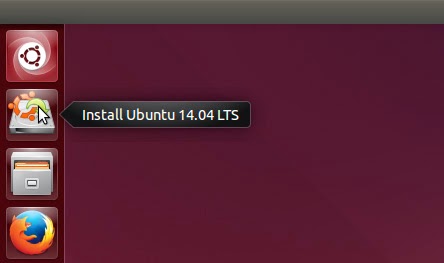
Step 4 : Follow the instructions and wait until it completes. Then restart your system and enter into Boot Device Selection Menu. There are some specific keys to do so and it may differ according to the System you are using. Commonly F8, F10, Escape Keys are used. In the Boot device selection Menu your pen drive Drive letter will be shown and select that option and press Enter. Now Operating system will Load from your Pen drive. There will be two options available for you Install Ubuntu and Try Ubuntu Simply select try Ubuntu and start working on it. Is it simple ?



Note : Use At least 4GB Pen drive.


Manual Disk Partitioning

Partitioning of a disk means dividing the available Hard Disk space into multiple categorized sizes. If there are five partitions means there is not five individual disks, a whole Hard Disk is portioned into multiple partitions or drives. An application called partition manager helps the user to partition the disk manually.

How to access Partition Manager or Disk Manager ?

1. Right click on My Computer, click on Manage. A new window will appear from that choose Disk Management. Otherwise goto run and type diskpart.


2. With using Disk Management tool user can add, delete partitions.

How to make Disk Partitions ?

1. Right click on the Free space( Unallocated space) and choose New Simple volume.


2. Choose the drive letter and assign the disk space in MB. 1024 MB=1 GB.

3. Click next and format the partition. now a new drive will be aviliable for you.

NOTE: Donot format or delete a drive with content.

Partition During Windows Installation

During the windows installation time normally creation of 3 Disk partitions are allowed. for creating more than of that partitions users can use manual disk partitioning.


Basics of computer hardware

BASICS OF COMPUTER HARDWARE
Basics of computer hardware includes the basic components of computer and its terms and terminologies.


CPU CABINET

CPU cabinets are the only containers of the hardware components of the computer, their are mainly two classifications of cabinets AT and ATX (came from AT and ATX class motherboards).

AT   - Created by IBM.
ATX- Created by Intel.

AT is an old method where the size is bigger and most ports are located at the back of the cabinet and power is directly connected to the board rather than to the switch, with this system will turn off but power supply will last until the user manually switches off.

ATX cabinets are cute and provides customization of ports and the power supplied through switches so power will be dropped automatically when the system is turned off.

AT 


ATX


SMPS(Switch Mode Power Supply)

Distributes the total power into required amount of power to each component of the computer.


Motherboard

An area where all the components are connected especially the processor.


RAM(Random Access Memory)

A primary memory where files are loaded when an application is executed its dependent files are loaded into the primary memory.

DDR(Double Data Rate)

According to the class of motherboard,capacity and speed RAM vary and new innovations are made..

DDR1


DDR2


DDR3

PCI(Peripheral Component Interconnect)

Enables the user to add extra cards which provides better facility and performance examples sound card,graphics card, TV turner card these enables extra memory allocated to them with the help of special driver software.

The main advantage of PCI is that if the on board functioning is stopped then the user can provide that functionality by adding the corresponding PCI card in the PCI slot of motherboard.

Example:- if a motherboard doesn't provides sound functionality then the user can add a sound card into the PCI slot with corresponding driver software and can enjoy the sound.


BIOS(Basic Input/Output System)

Consist of a set of programs which enables the user/Administrator to choose between the functionality of the computer. set of instructions that are maintained as the configuration of the system.

CMOS(Complementary Metal Oxide Semiconductor)

Which is used to save the changes made to the BIOS settings.

POST(Power On Self  Test)

Checking the hardware components status that they are ready for the processing and if everything is correct then loads the OS. Will return a beep sound from the system when it is switched on(if the on board speaker is connected).